
How to Display Your Scoreboard on a TV
Show your scoreboard on a large screen for spectators and players
ScoreboardMax scoreboards can be displayed on any TV or large screen in your venue, giving spectators, players, and coaches a clear view of the game status. There are two ways to connect your scoreboard to a TV: using a Smart TV with a web browser, or connecting a laptop to your TV with an HDMI cable.
Choose Your Connection Method
Smart TV
Use your TV's built-in web browser and our simple pairing process. No cables or extra equipment needed.
Laptop + HDMI Cable
Connect a laptop to your TV with an HDMI cable and display the scoreboard in a full-screen browser.
Pro Tip: Don't have a Smart TV? You can use an Amazon Fire TV Stick to add a web browser to any TV with an HDMI port, enabling wireless scoreboard display without a laptop.
1 Using a Smart TV
If your TV has a built-in web browser, you can display your scoreboard without any additional equipment. The pairing process connects your TV to your ScoreboardMax account using a simple code system.
Step 1: Open the Connection Page on Your TV
Using your TV's web browser, navigate to:
Enter this URL on your TV
sbmax.tv
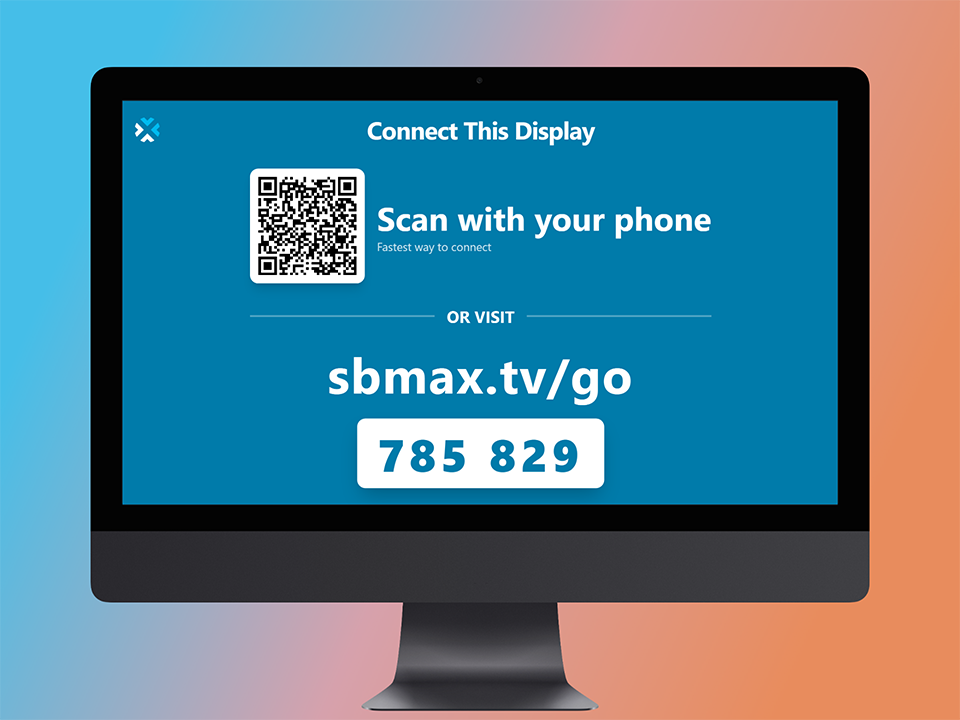
The TV will display a pairing screen with:
- A 6-digit pairing code (formatted as "123 456")
- A QR code you can scan with your phone
- A web address to visit manually if you prefer
Step 2: Connect from Your Phone or Computer
You have two options to connect:
Option A: Scan the QR Code (Recommended)
- Open your phone's camera
- Point it at the QR code on the TV screen
- Tap the link that appears to open it in your browser
Option B: Enter the Code Manually
- On your phone or computer, visit sbmax.tv/go
- Enter the 6-digit code shown on your TV
Step 3: Sign In (If Needed)
If you're not already signed in to ScoreboardMax, you'll be prompted to sign in with your account credentials. After signing in, you'll be returned to the display selection page.
Step 4: Select a Scoreboard
Once connected, you'll see a list of all your scoreboards. Each scoreboard shows:
- The scoreboard name and sport type
- The two teams currently configured
- A "Send to Display" button
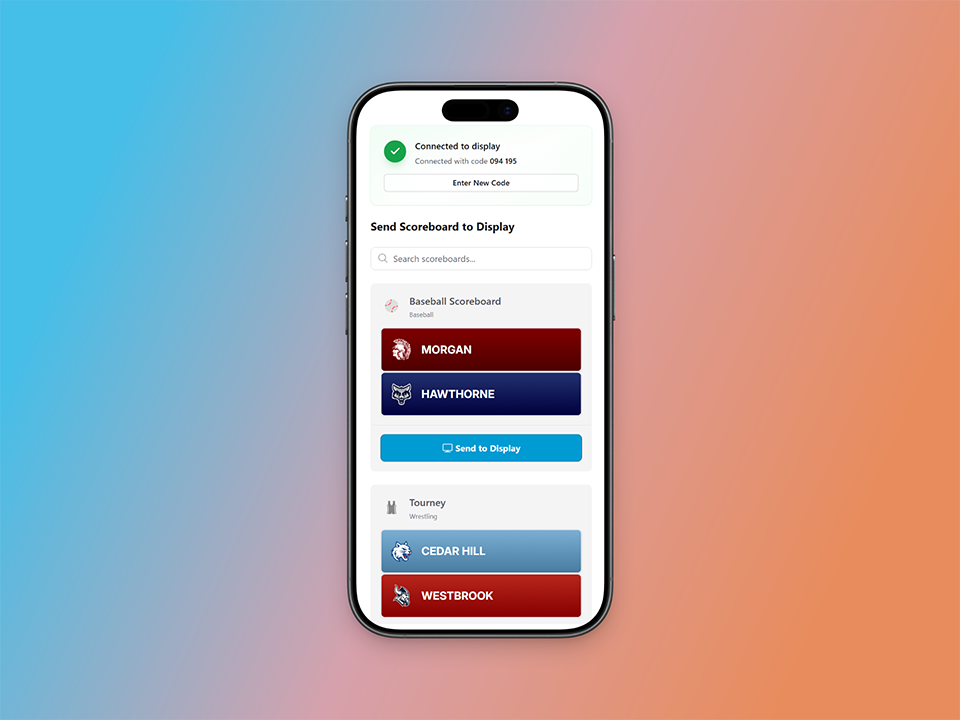
Use the search bar to quickly find a specific scoreboard if you have many in your account.
Step 5: Send to Display
Tap the "Send to Display" button on the scoreboard you want to show. Here's what happens:
- Your phone shows "Sending to Display..." while it confirms the connection
- The TV automatically navigates to show your selected scoreboard
- Your phone shows a success message confirming the scoreboard is now on your TV
You're all set! The scoreboard will update in real-time on your TV as you make changes from the control panel. You can control the scoreboard from any device signed into your account.
Troubleshooting
- QR code isn't working: Make sure your phone's camera can clearly see the entire QR code. Try moving closer to the TV, or use the manual code entry at sbmax.tv/go instead.
- Entered the wrong code: Click "Enter New Code" on your phone to try again.
- TV shows an error: Click "Try Again" on the TV to get a new pairing code. Check that your TV has a stable internet connection.
- Scoreboard isn't in the list: Use the search bar to find it by name. Make sure you're signed in to the correct ScoreboardMax account.
- Connection timed out: This is normal if you waited too long between steps. Simply click "Try Again" on the TV and start the process again.
Don't have a ScoreboardMax account yet? Create a free account in seconds.
No credit card required
2 Using a Laptop with HDMI Cable
If your TV doesn't have a web browser or you prefer a wired connection, you can connect a laptop to your TV using an HDMI cable. This method displays the scoreboard in a full-screen browser window on your TV while keeping your laptop screen free for other tasks.
What You'll Need
- A laptop (Windows PC or Mac)
- An HDMI cable
- An HDMI port on your TV (most modern TVs have this)
- An HDMI port or adapter for your laptop (some newer laptops may require a USB-C to HDMI adapter)
Step 1: Connect the HDMI Cable
- Plug one end of the HDMI cable into your laptop's HDMI port (or adapter)
- Plug the other end into an available HDMI port on your TV
- Turn on your TV and select the correct HDMI input using your TV remote
Your laptop screen should now appear on the TV. If you don't see anything, make sure the TV is set to the correct HDMI input.
Step 2: Extend Your Display
By default, your laptop may mirror its screen to the TV. For the best experience, set your display to "Extend" mode so you can show the scoreboard on the TV while using your laptop screen for other tasks.
Windows PC
- Press Windows key + P on your keyboard
- A menu will appear on the right side of your screen
- Select "Extend" from the options
- Your TV will now act as a second monitor
Alternative: Right-click on your desktop, select "Display settings", scroll down to "Multiple displays", and choose "Extend these displays".
Mac
- Click the Apple menu in the top-left corner of your screen
- Select "System Settings" (or "System Preferences" on older macOS)
- Click "Displays"
- You should see both displays listed. If the TV is mirroring your Mac screen, click on the TV display and uncheck "Mirror Display" or turn off mirroring
- Your TV will now act as a second monitor
Quick tip: You can also hold the Option key and click the display icon in the menu bar (if enabled) for quick access to display settings.
Step 3: Open Your Scoreboard
- Open a web browser on your laptop (Chrome, Firefox, Safari, or Edge all work well)
- Sign in to your ScoreboardMax account at scoreboardmax.com
- Navigate to your scoreboard and click the "Launch Display" link under the "Venue Display" section to open the scoreboard display
- Drag the browser window from your laptop screen over to the TV screen
To drag a window to the TV: click and hold the title bar of the browser window, then move your mouse to the right (or left, depending on your display arrangement) until the window appears on the TV screen.
Step 4: Enter Full-Screen Mode
Once the browser window is on your TV, make it full-screen to hide the browser interface and show only the scoreboard.
- Windows: Press F11 on your keyboard
- Mac: Press Control + Command + F, or click the green full-screen button in the top-left corner of the browser window
- All browsers: You can also click the browser's menu (three dots or lines) and select "Full Screen" or "Enter Full Screen"
To exit full-screen mode later, press F11 (Windows) or Escape (Mac), or move your mouse to the top of the screen to reveal the browser controls.
You're all set! Your scoreboard is now displayed full-screen on your TV. Control the scoreboard from your laptop or any other device signed into your account. The display will update in real-time as you make changes.
Tips for Best Results
- Prevent sleep mode: Adjust your laptop's power settings to prevent it from sleeping while connected to the TV.
- Disable notifications: Turn off system notifications on your laptop to prevent pop-ups from appearing on the TV during the game.
- Keep the laptop plugged in: Connect your laptop to power to ensure it doesn't run out of battery during the event.
- Test before the game: Set everything up before spectators arrive to make sure the connection works properly.
- Bookmark the scoreboard: Save the scoreboard URL as a bookmark for quick access at future games.
Frequently Asked Questions (FAQ)
Which method should I choose?
- Smart TV pairing is easier to set up and doesn't require any cables. It's the best choice if your TV has a reliable web browser and good internet connection.
- Laptop with HDMI is more reliable for venues with spotty Wi-Fi, and gives you more control over the display. It's also useful if your TV doesn't have a web browser.
Can I control the scoreboard while it's displayed on the TV?
- Yes! The scoreboard display on the TV is view-only. You control the scoreboard from a separate device (phone, tablet, or computer) using the scoreboard control panel.
- With the HDMI method, you can use your laptop screen to control the scoreboard while the TV shows the display.
What if the venue doesn't have Wi-Fi?
- No problem! You can use the mobile hotspot feature on your phone to provide internet access.
- Connect both the TV device (Fire Stick, smart TV, or laptop) and your scoreboard control device (phone, tablet, or computer) to the same hotspot.
- Once connected, the scoreboard works exactly the same as it would on a regular Wi-Fi network.
Does the scoreboard use a lot of data?
- No. ScoreboardMax uses very little data compared to video streaming or screen sharing.
- Only small real-time updates (like scores, clocks, and game state) are sent over the network.
- That said, a stable and reliable internet connection is important to keep everything in sync.
Does the TV need to stay on sbmax.tv?
- After pairing, the TV will automatically navigate to your scoreboard. It will stay on that scoreboard until you close the browser or navigate away.
- To display a different scoreboard, you'll need to repeat the pairing process.
What if my TV's web browser is slow or outdated?
- Some older Smart TVs have limited web browsers that may not display the scoreboard properly.
- If you experience issues, the HDMI laptop method is a reliable alternative that works with any TV.
- You can also use a streaming device (like a Chromecast, Fire TV Stick, or Roku) with a web browser app.
My laptop doesn't have an HDMI port. What can I do?
- Many newer laptops use USB-C ports instead of HDMI. You can purchase a USB-C to HDMI adapter to connect to your TV.
- These adapters are widely available and relatively inexpensive.
Still have questions? Please don't hesitate to contact our support team. We're happy to help!